 SHIAGENT
Render the SVG
The SVG is rendered at high resolution on a transparent background, and its lines are read as barriers.
Find areas closed by lines and add a white fill behind the line art.
Overlapping artwork no longer shows through from behind.
or
SVG · Multiple files
An existing matopuri-white-fill group is replaced; the original line art elements are never changed.
Close gaps or exclude areas manually
The SVG is rendered at high resolution on a transparent background, and its lines are read as barriers.
Transparent areas that cannot be reached from outside are picked as areas to fill.
White vector paths are inserted behind the original line art.
Using the actual closed-region detector with the Standard preset, these examples compare a closed outline, a 2 px gap in the detection raster, and an 8 px gap. Results vary with stroke width and render resolution, so review the preview for your SVG.
No gap · Standard
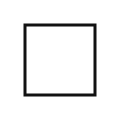
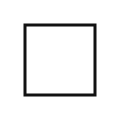
Result: 1 region. A white path is inserted behind the original line art.
2 px in detection raster · Standard
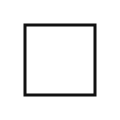
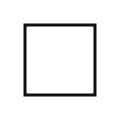
Result: 1 region. Standard can fill a break that falls within its closing range.
8 px in detection raster · Standard
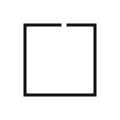
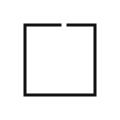
Result: 0 regions. Add a guide line in Manual SVG White Fill.
The drawing elements of the original SVG are left as they are; detected fills are added as a dedicated group.
Areas with large gaps in their outline cannot be detected as closed.
No. Rendering the SVG, detecting closed areas and adding white paths all happen inside your browser.
No. The white fill is added as its own group behind the line art. Processing an SVG that already has a white fill replaces the previous fill.
Areas whose outline has a gap are not detected as closed. Standard and Precise bridge small gaps; for larger gaps, draw guide lines in Manual SVG White Fill.
Strict fills only fully closed areas. Standard and Precise render at a higher resolution and bridge small breaks while detecting.
Example: add white backing paths to closed SVG regions so artwork below does not show through.